
Appearance
Geo-referencing projects
Geolitix has been designed to support projects in a variety of coordinate systems. Simple Cartesian coordinates using a local grid are useful for small projects or rebar mapping. Cartesian coordinate (x,y) grids can easily be georeferenced by providing Geolitix with a corner coordinate and a rotation angle, or two corner coordinates.
However, for larger projects and for those involving utilities detection, georeferenced data are critical. Generally, GNSS receivers store location information in Latitude/Longitude coordinates. By default, Geolitix reads in all GNSS or total station positioning information associated with GPR datasets and converts the GNSS NMEA strings to UTM WGS84 positions.
It is often required to work on a project within a specific national or regional coordinate system. There are many tools available to convert UTM WGS84 coordinates to the hundreds of possible national grids. However, it is crucial to note that such tools are often inaccurate up to multiple metres, which could produce inaccurate final results.
Geolitix implements support for national and regional grids on a case-by-case basis and only uses verified government transformation parameters to ensure the greatest possible accuracy. These are implemented on a user-requested basis.
Layer coordinate system (input)
The data you import may not always be in the same coordinate system as your project. For relevant layer types, you can specify the input coordinate system in the layer's properties panel. Geolitix will automatically convert the layer's coordinates from the input system to the project's output system.
For example, GPR data may have been collected with a GNSS receiver storing coordinates in WGS84, while your project uses OSGB coordinates for the United Kingdom. By setting the GPR layer's input coordinate system to WGS84, Geolitix will convert the positions to OSGB for display and export.
Project coordinate system (output)
The project coordinate system is defined by clicking the Options icon  on the sidebar.
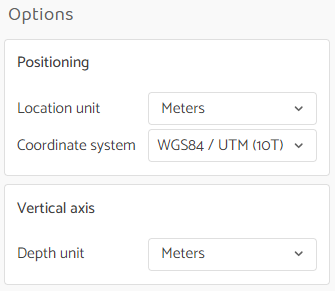
From this menu, you can select the default planar measurement units (meters, centimeters, millimeters, feet, or inches) and the default vertical measurement units.
The project coordinate system defines how all coordinates are displayed in your workspace and the coordinate system used for all exported files. This is the output coordinate system for your project.